Application example
Use of ScopeView2 with oversampling
Preparation
- Use TwinCAT 2.11, build 1549 or higher
- Use current ScopeView2
Activation of oversampling
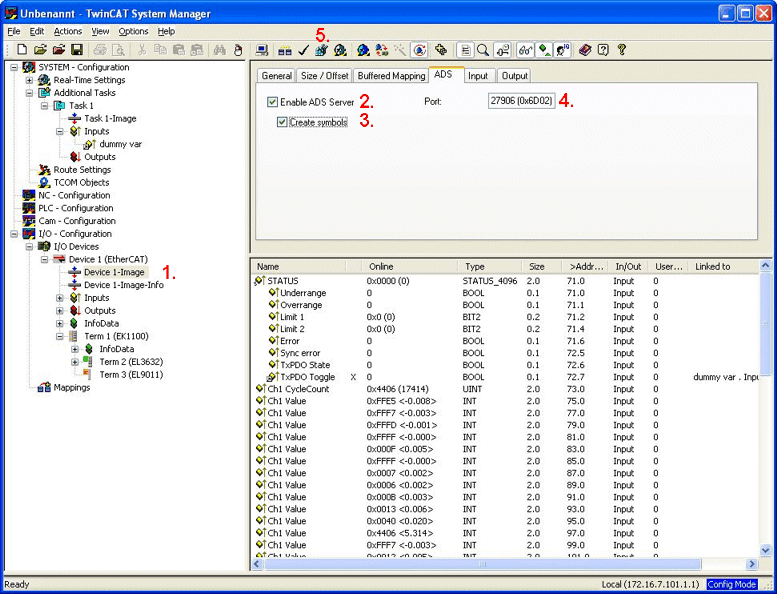
The following steps must be performed (fig. Activation of ScopeView2):
- Select the process image of the EtherCAT master (in this case: “Device 1 - process image”)
- Select “Enable ADS Server” in the “ADS” tab
- Select “Create symbols”
- Note the “Port” (usually 27905)
- Adopt configuration (note: PLC restart is necessary!)
Use of the oversampling variable
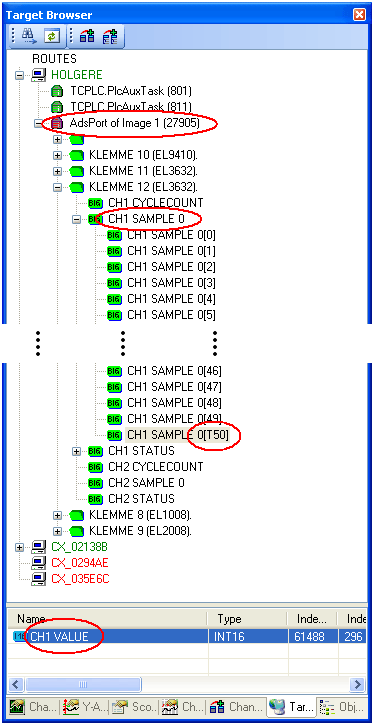
The following steps must be performed (fig. Target Browser):
- Select ScopeView2 “View” - > “Target Browser”
- Select “Enable Server Ports” (button at top left)
- Enter the noted port (see fig. Activation of ScopeView2) in the field at the bottom left
- Confirm “Add” and “OK”
- A new entry, “AdsPort of Image 1”, appears in the Target Browser; select it and display the tree with [+]
- Select the variable “CH1 SAMPLE 0” or “CH2 SAMPLE 0” for the terminal used and display the tree with [+]
The last entry in the tree contains the oversampling variable (can be recognized by the index T+Oversampling factor)
A double-click on this variable displays its characteristics. A double-click on the variable with the blue box inserts it into the object browser.
 | Creating a task An additional task must be used if no PLC is active: TwinCAT System Manager: “SYSTEM - Configuration” - > additional task - > rights mouse button “Add task” - > rights mouse button “Insert variable”. Create variable(s) and link with a terminal. The meaning and size of the variables are not relevant. |