Sample Program
 | Using the sample programs This document contains sample applications of our products for certain areas of application. The application notes provided here are based on typical features of our products and only serve as examples. The notes contained in this document explicitly do not refer to specific applications. The customer is therefore responsible for assessing and deciding whether the product is suitable for a particular application. We accept no responsibility for the completeness and correctness of the source code contained in this document. We reserve the right to modify the content of this document at any time and accept no responsibility for errors and missing information. |
 Download
 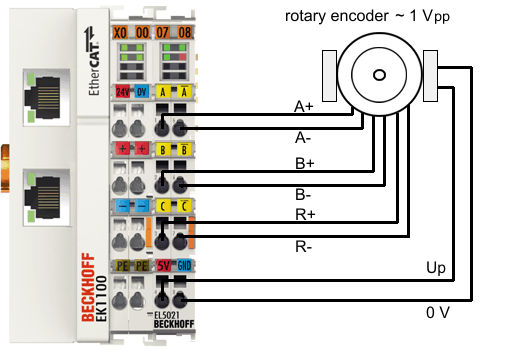 Fig.158: Connection for sample program
Starting the sample program
The application examples have been tested with a test configuration and are described accordingly.
Certain deviations when setting up actual applications are possible.
The following hardware and software were used for the test configuration:
- TwinCAT Master PC with Windows XP Professional SP 3 operating system and TwinCAT version 2.11
- Beckhoff EK1100 EtherCAT coupler, EL5021-0000-0017 and EL9011 terminals.
- Rotary encoder ~ 1 Vpp
The sample program contains
- display of the process data, operation of the outputs
- calculation of the mechanical position, taking into account the bit shifting
- continuous read-out of the CoE directory and setting in case of change
Procedure for starting the program
- After clicking the Download button, save the zip file locally on your hard disk, and unzip the *.TSM (configuration) and the *.PRO (PLC program) files into a temporary working folder.
- The *.pro file can be opened by double click or by the TwinCAT PLC Control application with menu selection “File/ Open”. The *.tsm file is provided for the TwinCAT System Manager (to review or overtake configurations).
- Connect the hardware in accordance with fig. Connection for sample program and connect the Ethernet adapter of your PC to the EtherCAT coupler (further information on this can be found in the corresponding coupler manuals)
- Select the local Ethernet adapter (with real-time driver, if applicable) under System configuration, I/O configuration, I/O devices, Device (EtherCAT); then on the “Adapter” tab choose “Search...”, select the appropriate adapter and confirm (see Fig. Searching the Ethernet adapter + Selection and confirmation of the Ethernet adapter).
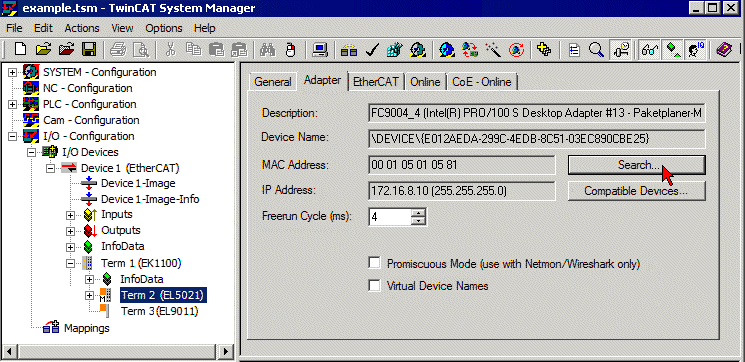 Fig.159: Searching the Ethernet adapter
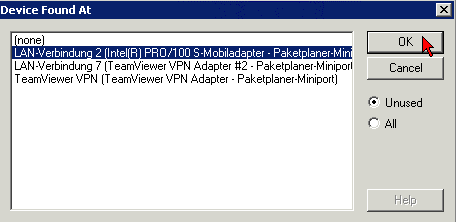 Fig.160: Selection and confirmation of the Ethernet adapter
- Activate and confirm the configuration (Fig. Activation of the configuration + Confirming the activation of the configuration)
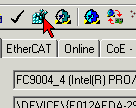 Fig.161: Activation of the configuration
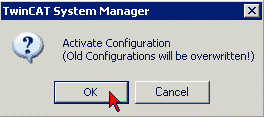 Fig.162: Confirming the activation of the configuration
- Confirm new variable mapping, restart in RUN mode (Fig. Generate variable mapping + Restarting TwinCAT in RUN mode)
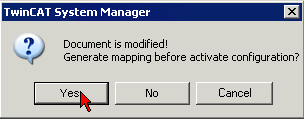 Fig.163: Generating variable mapping
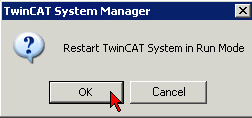 Fig.164: Restarting TwinCAT in RUN mode
- In TwinCAT PLC, under the “Project” menu, select “Rebuild all” to compile the project (Fig. Compile project)
- In TwinCAT PLC: log in with the “F11” button, confirm loading the program (Fig. Confirming program start), run the program with the “F5” button
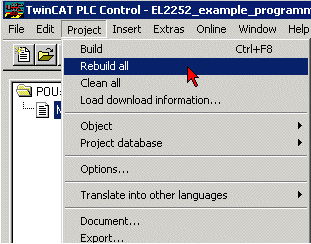 Fig.165: Compile project
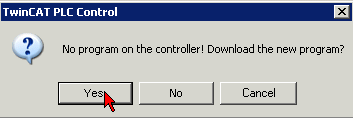 Fig.166: Confirming program start
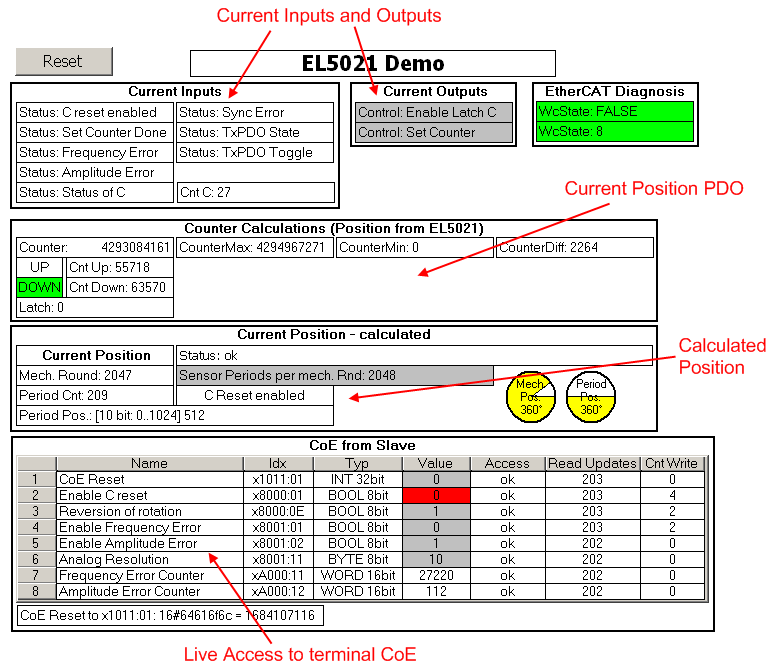 Fig.167: PLC visualization screenshot