Installation Windows CE
This part of the documentation describes, how you can install the supplement TwinCAT TCP/IP Server on a Beckhoff Embedded PC Controller based on Windows CE, for example CX1000, CX1020, CX9000, CX9001, CX9010, CP62xx, C69xx, ...
The setup process consists of four steps:
- Downloading the setup file
- Installation on a host computer
- Transfering the setup file to the Windows CE device
- Executing the setup on the Windows CE device
Downloading the setup file
Like many other TwinCAT Supplement products, TCP/IP Server for CE is available for download via the Beckhoff FTP-Server. The download represents the most current version. To download the setup file, please perform the following step:
- Select the TwinCAT TCP/IP Server CE from the BECKHOFF website.
Installation on the host PC
To access the installation files for Windows CE, the downloaded setup file must first be installed on a host PC. This can be any Windows XP-based system. To do this, perform the following steps:
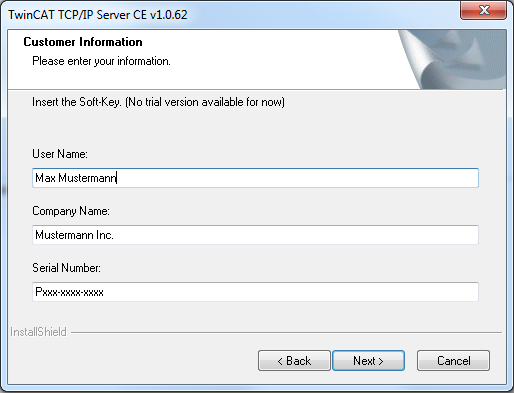
 | Please note: a 30-day demo version of TCP/IP Server for Windows CE is currently not available. So you need a valid product key for the installation. |
- Double-click the downloaded file "TcTCPIPSvrCE.exe".
- Select the language in which you wish to install the software.
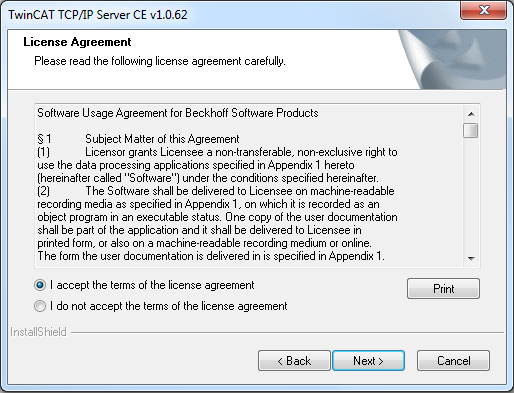
- Click on "Next" and then accept the license agreement.
- Enter your user data. All visible fields are mandatory fields.
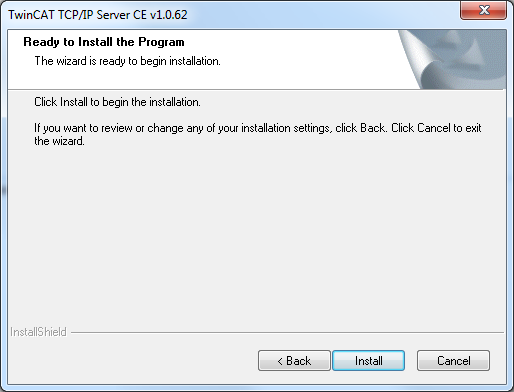
- Then click "Install" to start the installation.
After the installation, the Windows CE installation files are now located in the folder ".\TwinCAT\CE". This folder contains a variety of different CE installation files in the form of CAB files:
- TCPIP\Install\TcTCPIPSvrCe.I586.cab: TCP/IP server for x86 based CPUs (like CX10xx, CP62xx, C69xx, ...)
- TCPIPInstall\TcTCPIPSvrCe.ARMV4I.cab: TCP/IP server for ARM based CPUs (like CX9001, CX9010, CP6608, ...)
Transfering the setup file to the Windows CE device
Transfer the corresponding setup file to you CE device. This can be done in the following ways:
- via a Shared Folder
- via the integrated FTP-Server
- via ActiveSync
- via a CF card
For more information, please consult the "Windows CE" section in our Infosys documentation system.
Running the installation on the Windows CE device
The installation file "TcTCPIPSvrCe.xxxx.CAB" transferred to the controller must now be installed. To do this, please perform the following steps on the CE device:
- Navigate to the folder that you transferred the installation file to,

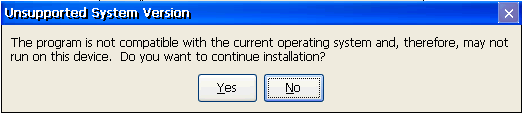
- Double-click the CAB file. If you get a MessageBox saying "Program is not compatible with current operating system", check that you have used the correct CAB file (ARM, I586) for your platform.
- If you are sure that the CAB file is correct, confirm the message with "Yes".
- Confirm the destination directory"\Hard Disk\System" with "Ok".
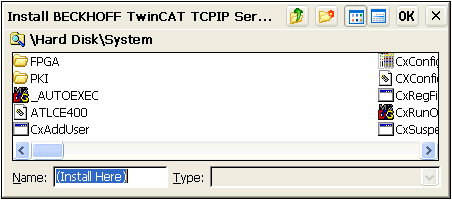
- To start the installation, click in the upper right corner on "Ok"
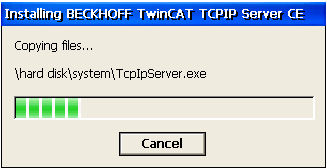
After installation, the installation file deletes itself automatically.
| The TCP/IP server will not be available until the next system reboot. |