Windows 7 Runtime: Installation and configuration
Requirement:
- On the host PC: Editor: TwinCAT 2.10 Build 1326 or higher
Installation:
TwinCAT PLC HMI Web is available as supplement and can be installed via Setup. A licence is required. A limited demo version is not available.
The installation consists of three steps:
1: Installation of the Internet Information Server IIS
- The Internet Information Server (IIS) is not installed as standard in Windows 7. This function must be subsequently installed
- See http://http://technet.microsoft.com/de-de/library/cc725762%28v=ws.10%29.aspx
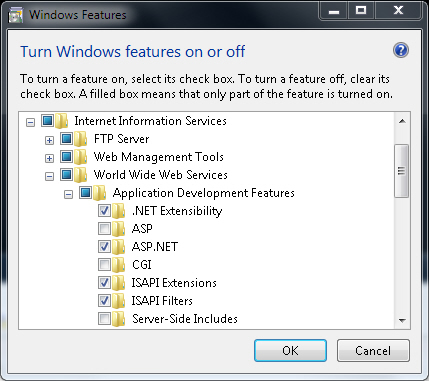
- Make sure that the ISAPI filter and extensions are also installed (see picture)
2: Installation of the supplement software on the host PC
- The supplement software is installed on your PC with the Win 7 runtime by entering the required licence key and agreeing to the licensing conditions
3: Configuration of the Internet Information Server (IIS)
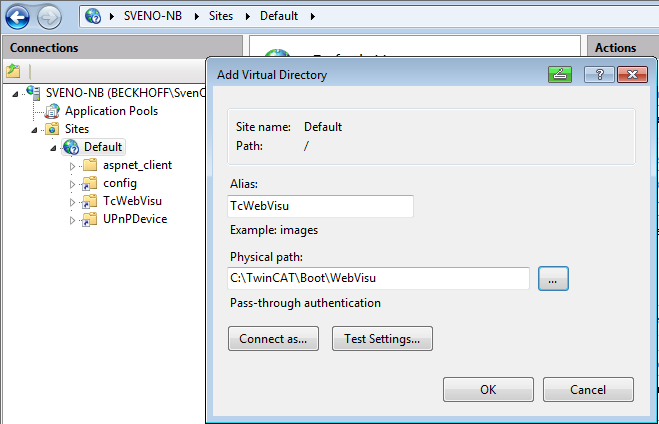
- Create a “virtual directory” with the name “UPnPDevice” with a link to the directory “.\Programs\Beckhoff \UPnP\WebSite”
- Create a “virtual directory” with the name “TcWebVisu” with a link to the directory “.\TwinCAT\Boot\WebVisu”
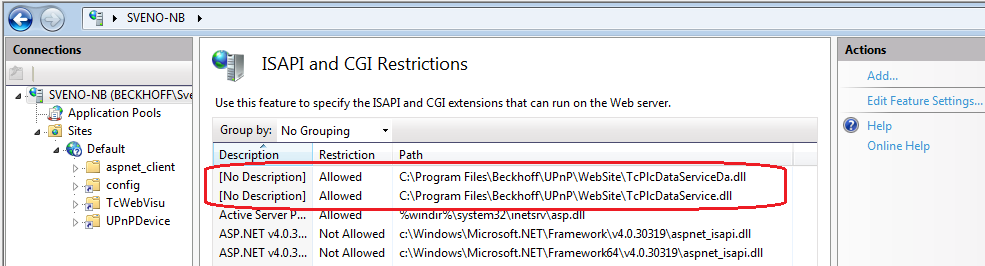
- Add the following DLLs under “IIS/ISAPI and CGI Restrictions” and permit their execution:
- C:\Program Files\Beckhoff\UPnP\WebSite\TcPlcDataServiceDa.dll
- C:\Program Files\Beckhoff\UPnP\WebSite\TcPlcDataService.dll
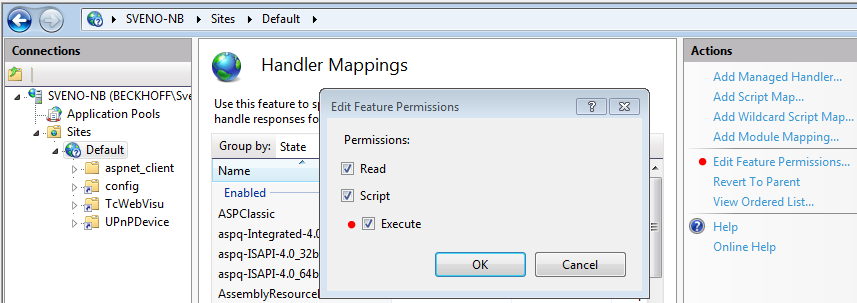
- Permit the action “Execute” under “Handler Mappings”
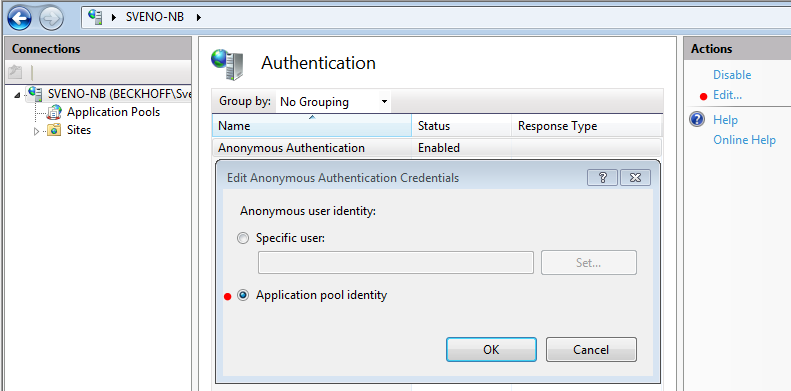
- Select “Applications pool identity” under “IIS \Authentication\Anonymous Authentication”.
- Restart the IIS service
- The installation is now completed.
Windows 7 64 Bit Operation
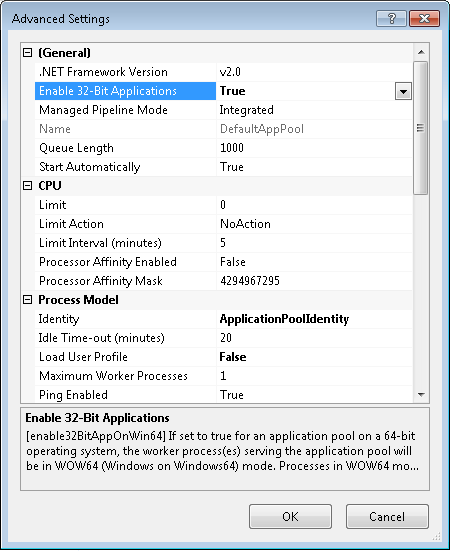
If you use Windows 7 64-bit, you need to explicitly enable 32-bit ISAPI-DLLs in IIS. In this case, please perform the following steps:
- Open "Internet Information Service (IIS) Manager" which can be found under "Control Panel\Administrative Tools\"
- Click on "Application Pools"
- Select the "DefaultAppPool" and click on "Advanced Settings..." from the Actions panel
- Set the entry "Enable 32-bit Applications" to "True", then click on "OK" to commit the changes