Module messages for the Engineering (logging / tracing)
Overview
TwinCAT 3 C++ offers the option of sending messages from a C++ module to the TwinCAT 3 Engineering as tracing or logging.
Syntax
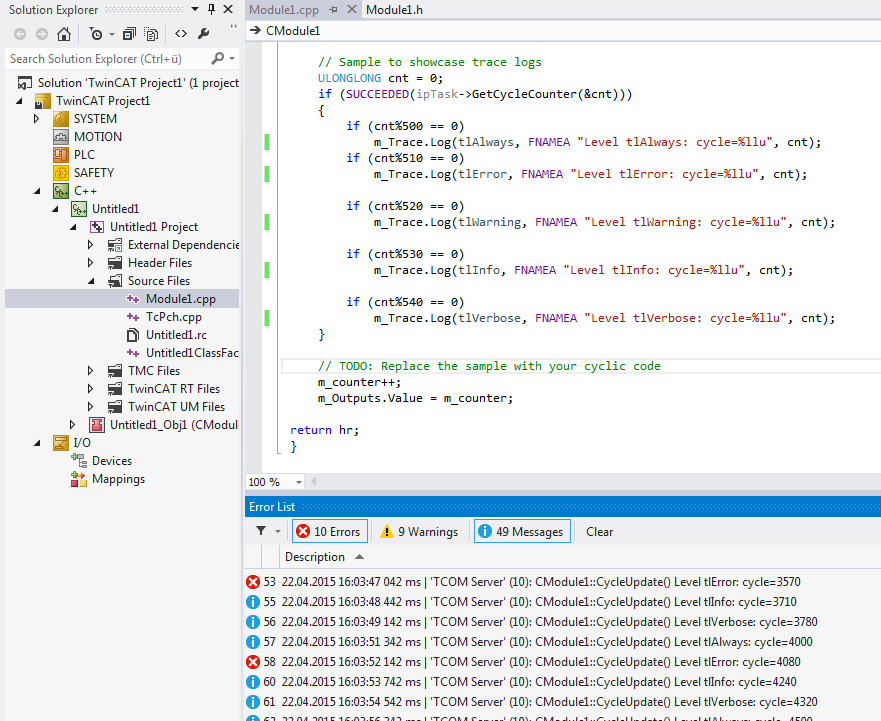
The syntax for recording messages is as follows:
m_Trace.Log(TLEVEL, FNMACRO"A message", …);With these properties:
TLEVELcategorizes a message into one of five levels.
The recording of the higher level always includes the recording of the lower levels: i.e. a message classified at level "tlWarning" will occur with level "tlAlways", "tlError" and "tlWarning" - it will NOT record the "tlInfo" and "tlVerbose" messages.
Level 0 | tlAlways |
Level 1 | tlError |
Level 2 | tlWarning |
Level 3 | tlInfo |
Level 4 | tlVerbose |
FNMACROcan be used to place the function name before the message to be printed- FENTERA: Used when entering a function; prints the function name followed by ">>>".
- FNAMEA: Used within a function; prints the function name.
- FLEAVEA: Used when exiting a function; prints the function name followed by "<<<".
- The
%qformat specifier is used to output pointers and other variables of platform-specific size.
Sample
HRESULT CModule1::CycleUpdate(ITcTask* ipTask, ITcUnknown* ipCaller, ULONG_PTR context)
{
    HRESULT hr = S_OK;

    // Sample to showcase trace logs
    ULONGLONG cnt = 0;
    if (SUCCEEDED(ipTask->GetCycleCounter(&cnt)))
    {
        if (cnt%500 == 0)
            m_Trace.Log(tlAlways, FENTERA "Level tlAlways: cycle= %llu", cnt);

        if (cnt%510 == 0)
            m_Trace.Log(tlError, FENTERA "Level tlError: cycle=%llu", cnt);

        if (cnt%520 == 0)
            m_Trace.Log(tlWarning, FENTERA "Level tlWarning: cycle=%lld", cnt);

        if (cnt%530 == 0)
            m_Trace.Log(tlInfo, FENTERA "Level tlInfo: cycle=%llu", cnt);

        if (cnt%540 == 0)
            m_Trace.Log(tlVerbose, FENTERA "Level tlVerbose: cycle=%llu", cnt);
    }

    // TODO: Replace the sample with your cyclic code
    m_counter++;
    m_Outputs.Value = m_counter;

    return hr;
}
Use tracking level
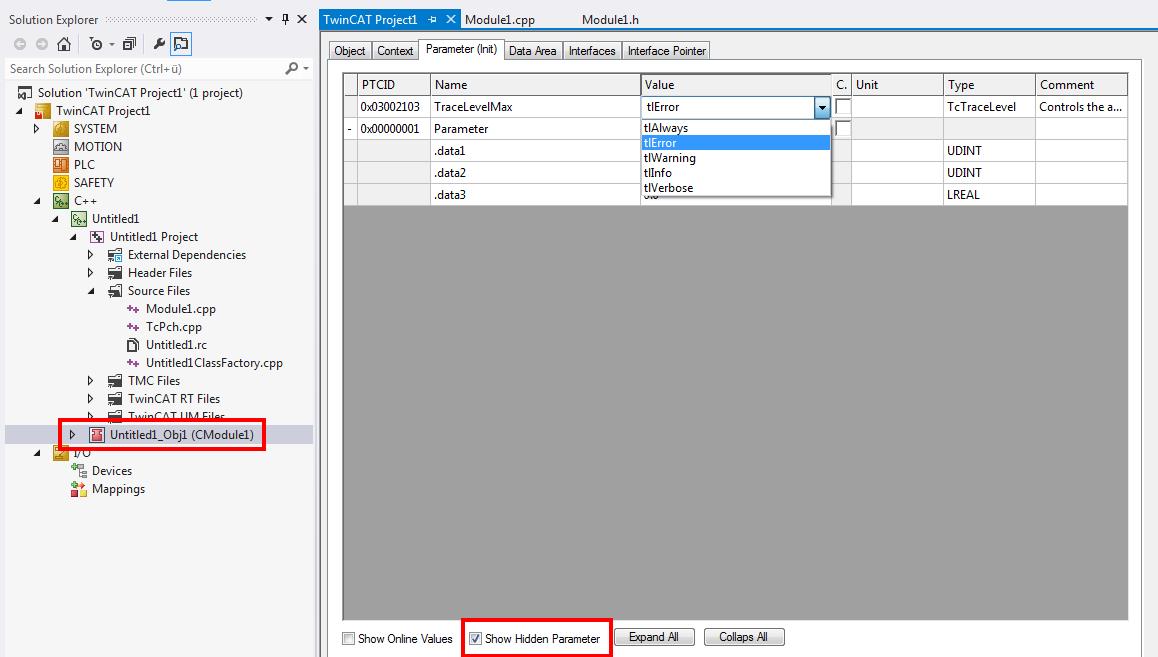
The tracking level can be preconfigured at the level of the module instance.
- 1. Navigate to the instance of the module in the solution tree.
- 2. Select the Parameter (Init) tab on the right.
- 3. Make sure that you activate Show Hidden Parameter.
- 4. Select the tracking level.
- 5. To test everything, select the highest level tlVerbose.
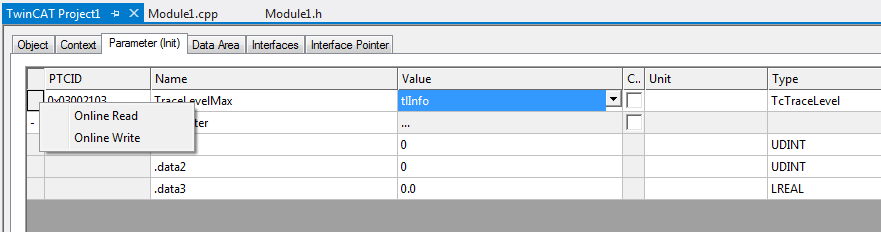
Alternatively, you can change the tracking level at runtime by going to the instance, selecting a level at Value for TraceLevelMax parameters, right-clicking in front of the first column, and selecting Online Write.
Filter message categories
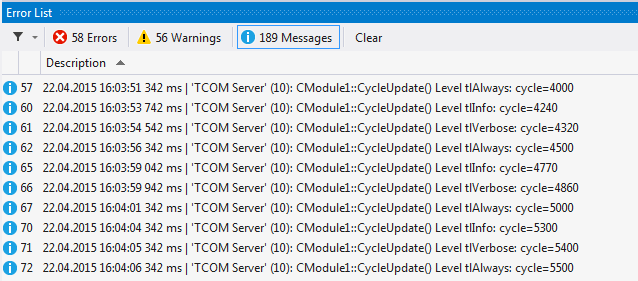
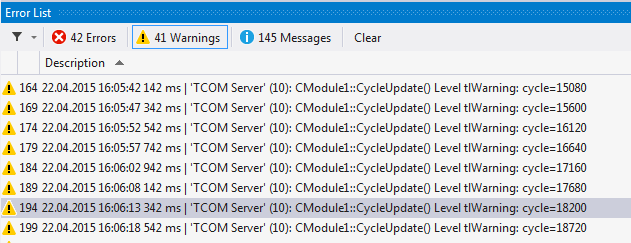
Visual Studio Error List allows you to filter entries by category. The three categories Errors, Warnings and Messages can be enabled or disabled independently by simply switching the keys.
In this screenshot only warnings are enabled - errors and messages are disabled:
In this screenshot, only messages are enabled - errors and warnings, on the other hand, are disabled for the display: