Symmetric PDO mapping
Creating general process data / simple data exchange (symmetric PDO mapping)
Procedure:
Right-click on IO Inputs or IO Outputs within the EL6695 directory tree to show the context menu. Select Insert Variable… (TwinCAT 2) or Add New Item (TwinCAT 3) to create new variables / process data (see following figure).
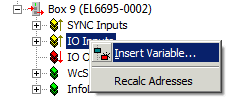 Fig.136: Context menu for IO inputs: Adding new variables
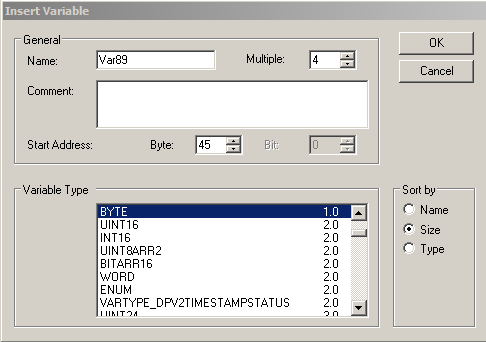 Fig.137: Dialog for adding new variables (here 4 x BYTE), beginning with the name Var89
In this dialog a name can now be assigned for the variable, and the data type can be selected from a wide range of possible types. Several variables of the same type can be declared simultaneously via the Multiple selection box, and a defined start address can be set. Once the above dialog is confirmed, the process image shown below appears.
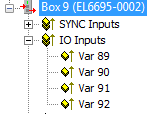 Fig.138: Newly added variables on the secondary side of the EL6695
The variable names are incremented automatically, as shown here. Output variables are created accordingly.
On the primary side, i.e. the “remote side” of the EL6695, four suitable output variables of the same type should now be created for the data exchange. These variable do not have to have the same name, i.e. they can be called Var85 to Var88.
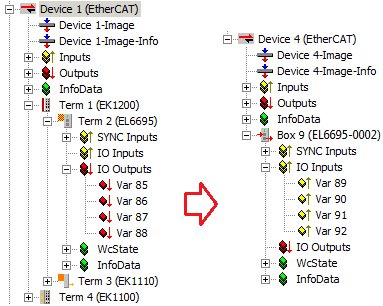 Fig.139: Creating process data
 Once here too 4 x BYTE variables have been added to the outputs on the primary side of the EL6695, all values are output continuously via the four input variables, once the variables have been written, e.g. via a PLC program. If, for example, a value is written into variable Var86, the same value is written to the sequence corresponding output variable Var90 in the mapping of the remote side of the EL6695 (as long as the terminal is in OP state).
Transfer direction of two controls PLC1 to PLC2
Generally the terminal will be used to transfer data between two controls. Given that the bridge maps an output as an input and an input as an output the following manner of transmission is the result:
- Output (PLC1) → Output EL6695
 Input EL6695-0002 remote side → Input (PLC2)
 - Input (PLC1) → Input EL6695 Output EL6695-0002 remote side → Output (PLC2)
In each case, the EL6695 bridge terminal “maps” output value to input value in byte order and vice versa (without other configurations or settings). Thereby the data type of the used variables have to be the same on every side.
Automatic configuration via the configuration interface/extension:
The EL6695 extension with the Create Configuration button makes the created variables readable online on the other side, so that they do not have to be created separately there. Obviously, this function is recommended to use for a wide process image and is available by the plug-In [EL6695], only. Additionally, the EL6695 have to be ready to operate and accessible "online“ from both sides. The procedure for TwinCAT 3 will be described below by created variables on the primary side automatic mirrored on the secondary side:
- Precondition: TwinCAT is in „Free-Run“/ „Config Mode" (see symbol down-right
 ,
,  ), an EL6695 is present primary sided below „Device“ (Term)
 - A) Variables would be created on the primary side (e.g. 10 input and 12 output variables):
- B) The Terminal is selected on primary side; by pressing the button [Create configuration] under „Process Data“ within the [EL6695] tab a "mirrored" set of variables will be created for the other side, in this case the secondary side internally created by the terminal; thus they aren't visible yet
- C) The successful execution of this action should be receipted respectively:
- D) The primary side must now be set via INIT to PreOp and OP.
- E) The further steps are done on the secondary side. In order for the terminal to take over the data of the variables through an internal initialization, the terminal must be read in again via a scan process on the device on the secondary side. It may be in Error PreOp status because the PDOs of the primary and secondary side do not match. It must be manually set to PreOp status - not OP status - so that the StartUp list is not sent. Therefore FreeRun must not be activated.
- F) First, for further proceeding, the object dictionary structure have to be transferred from the terminal into TwinCAT. This is done from the [CoE – Online] tab by selecting “Advanced...” and performing the following steps (1 and 2) as shown:
- G) Under the [Process Data] tab, the "mirrored" variable configuration is created from the other side using [Load PDO info from device] and then visible in the "Solution Explorer" (left):
- H) If necessary, reload the configuration using "Reload Devices" (
 )n the TwinCAT menu and activate FreeRun.
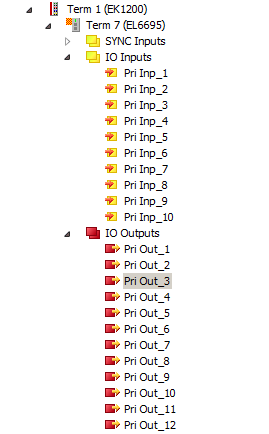 Fig.140: Exemplary applied variables on the primary side of the EL6695
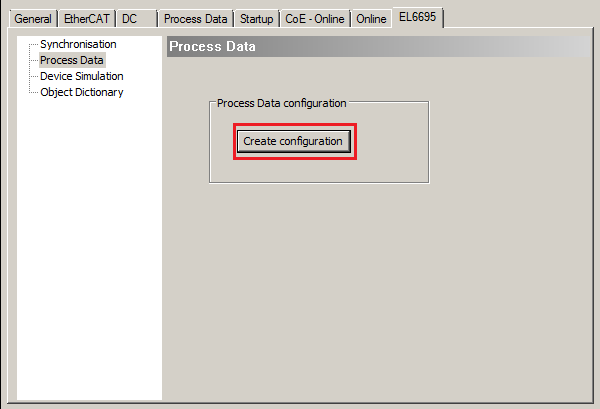 Fig.141: [Create configuration] under „Process Data“ in the EL6695 tab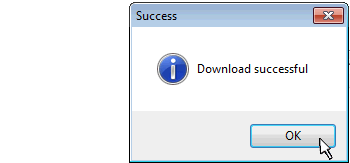

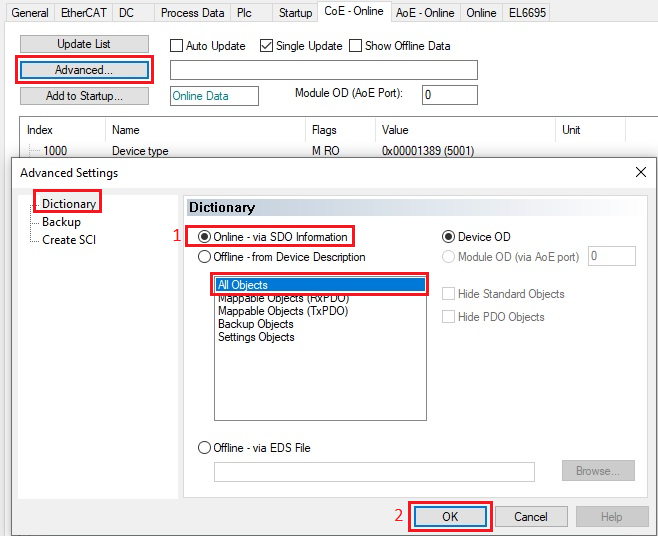 Fig.142: Loading the object dictionary structure from the device
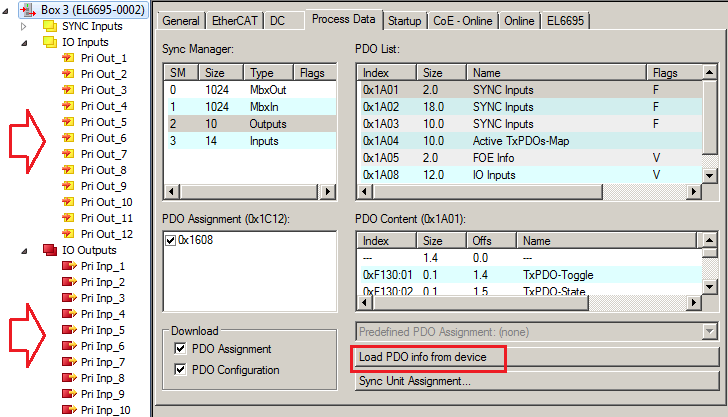 Fig.143: Variables of the primary side mirror-fit transmitted to the secondary side by "Load PDO info from device"
According to the procedure described here the variables could also be created for the primary side, if a set of I/O variables, i.e. a PDO-Configuration is present on the secondary side.
Restriction Variables
The following PDO/variable types are to be used for this procedure:
Byte, UINT, UDINT
Use without TwinCAT
If no TwinCAT EtherCAT Master with [Load PDO info from device] is available on the other side, the PDO upload mechanism must be reproduced there:
- Read PDO assignment objects 0x1C12, 0x1C13
- then read out the PDO Mapping Objects 0x160x (outputs), 0x1A0x (inputs) and
- read out the PDOs 0x60xx, 0x70xx accordingly
 | If a scan procedure is not possible/ not desired To let variables be created on the secondary side, after steps B) and C) of [Create configuration], the terminal on the primary side must be set manually into the INIT state and then again into the OP state ("Online" tab: click on Init, then: Safe-Op, Pre-Op, Op). On the secondary side the respective variant of the EL6695 (-0002) can then be inserted instead. Besides the procedure is like described above since E). |