Application sample - Service interface with remote desktop
The application samples have been tested with a test configuration and are described accordingly.
Certain deviations when setting up actual applications are possible.
The following hardware was used for the test configuration:
- TwinCAT master PC with Windows XP Professional SP 2, TwinCAT version 2.10 (Build 1305) and INTEL PRO/100 VE Ethernet adapter
- Beckhoff Ethernet coupler terminal EK1100, terminals EL1012, EL6601 and EL9010
- Notebook (service PC) for remote desktop connection with Windows XP Professional SP 2 and standard Ethernet interface
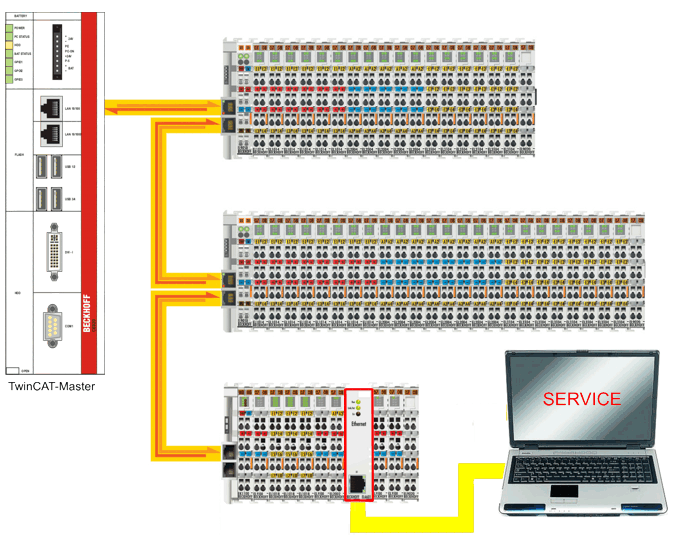 Fig.144: Integration of a Service interface with remote desktop-PC
Configuration at the TwinCAT master PC
- Start the TwinCAT System Manager in Config mode, read the Bus Terminal configuration, and activate free-run mode
- The EL6601 should appear in the system configuration being in OP mode (see Online tab EtherCAT Status Machine)
- In analogy to the configuration of a network printer the IP number of the EtherCAT network port of the TwinCAT Master-PC in the subnet is e.g. 192.168.0.1
- Open the Control Panel of the TwinCAT master PC and click on Security Center -> Windows Firewall
- If the Windows firewall is activated click on tab Exceptions
- Select Remote Desktop and confirm with OK
- Return to the Control Panel of TwinCAT master PC and select Performance and Maintenance -> System
- Click on the Remote tab, and in the Remote Desktop category select the option Allow users to establish a remote desktop connection
- Open the list of remote desktop users via the button Select remote users... and add additional users if required
- Confirm with OK.
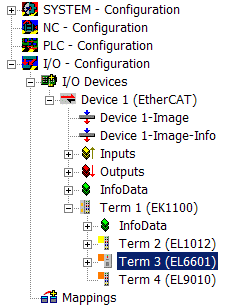 Fig.135: EL6601 in the configuration
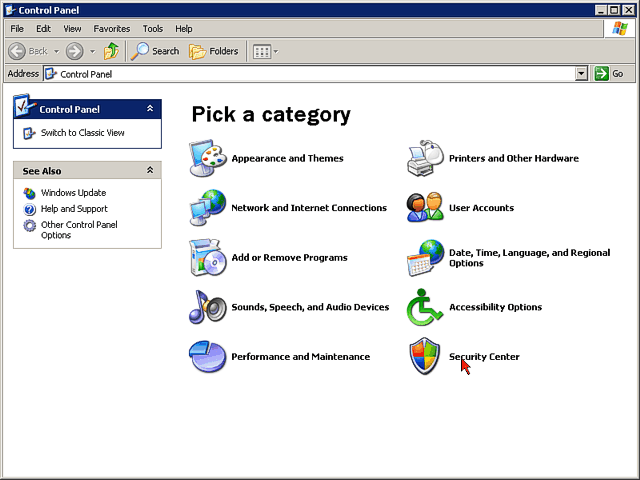 Fig.146: Selection of “Security Center” in the View Control Panel Category
 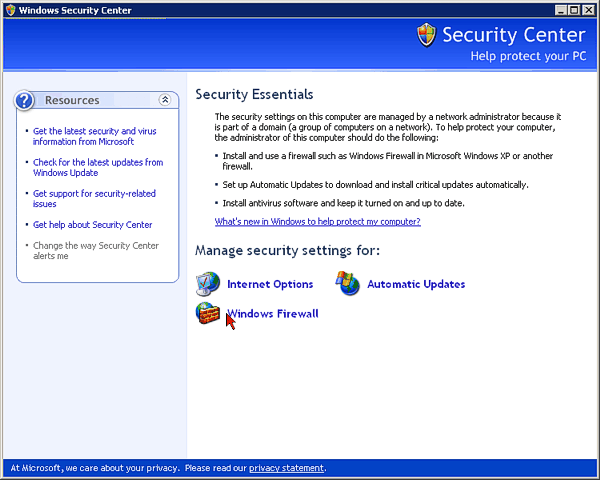 Fig.147: Choose security settings for Windows Firewall
 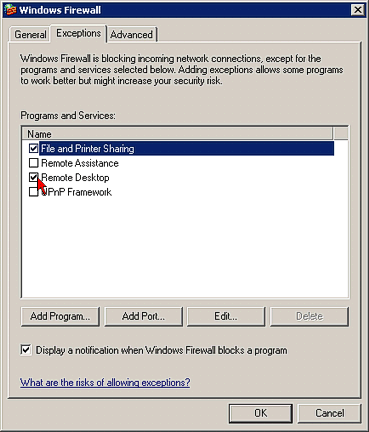 Fig.148: At the “Exceptions” Tab activate the “Remote desktop” service
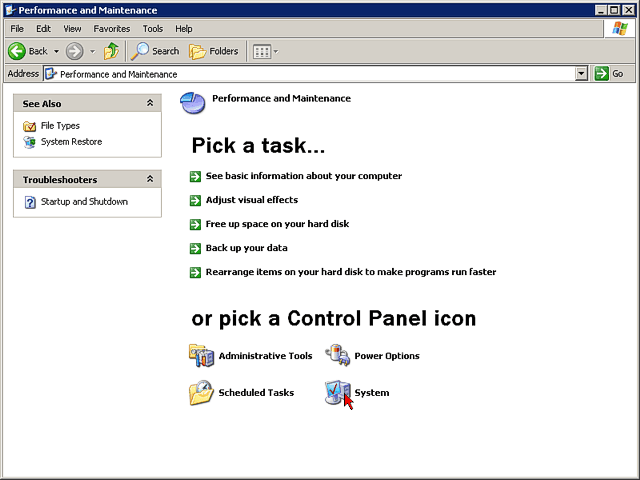 Fig.149: Select “Service and Maintenance” from “System” in the View Control Panel
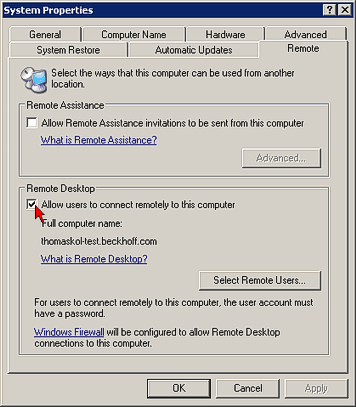 Fig.150: Check “Allow users to establish a remote desktop connection”
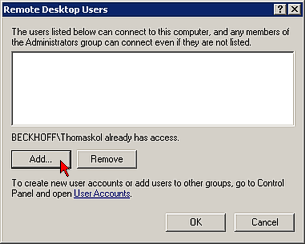 Fig.151: Adding remote desktop users
Configuration at the service PC
For a remote desktop connection with the TwinCAT master PC via the EL6601 the network address of the service PC has to be set according to the IP number range of the TwinCAT master PC subnet.
- Connect the Ethernet port of the service PC with the EL6601 via a CAT-5 (1:1) cable
- In the Control Panel of the Service-PC check the Ethernet network adapter, via which the EtherCAT system is operated:
Network Connections [Properties] -> Local Area Connection (Ethernet LAN adapter), [Properties]-> Internet Protocol (TCP/IP) [Properties] - Enter an IP address for the subnet of the network printer (e.g. 192.168.0.38/255.255.255.0) and confirm with OK
- The Ethernet connection to the TwinCAT master PC is now tunneled via the EL6601 through the EtherCAT terminal network and can be established via the remote desktop.
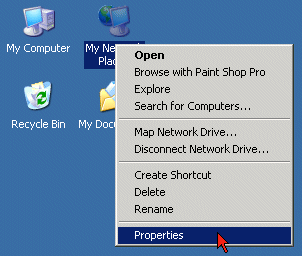 Fig.136: Context Menu Network Environment -> “Properties”
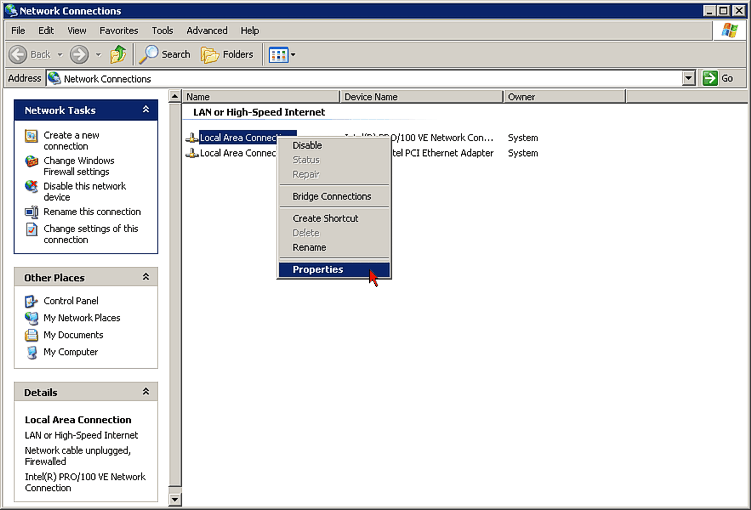 Fig.153: Context Menu “LAN Connection (Ethernet-LAN-Adapter),” -> “Properties”
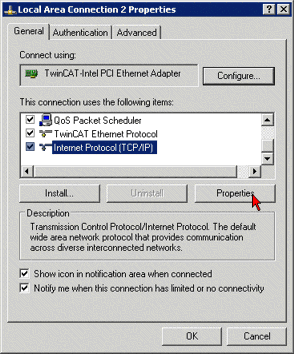 Fig.138: Properties Internet Protocol (TCP/IP)
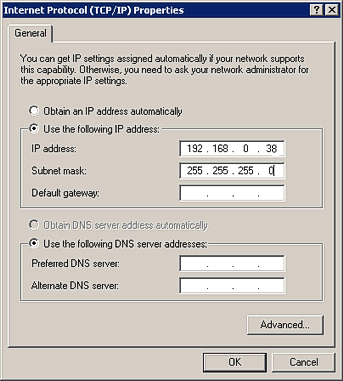 Fig.155: Entry of the IP address of the subnetwork of the Service-PC
Establishing the remote desktop connection
- On the service PC start the remote desktop connection via Start -> Programs -> Accessories -> Communication -> Remote desktop connection
- Enter the IP address of the TwinCAT master PC (e.g. 192.168.0.1) and click Connect
- The login window of the TwinCAT master PC appears on the desktop of the service PC
- Enter your user name and password for the TwinCAT master PC and confirm with OK
The IP address of the TwinCAT master PC is shown above the remote desktop NOTICE
- The TwinCAT system can now be remotely controlled via the service PC.
To log out close the remote desktop window.
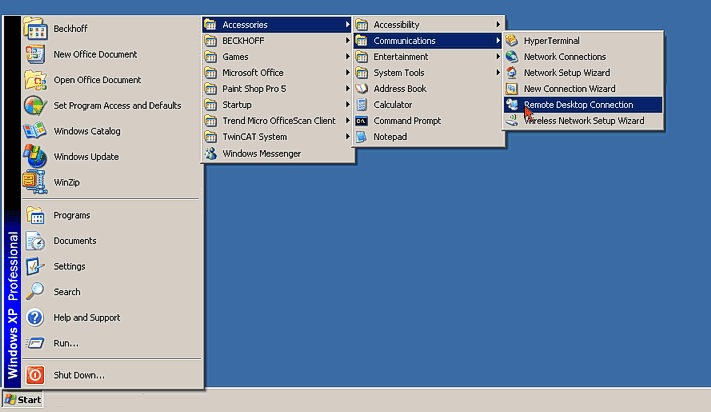 Fig.156: Start remote desktop connection
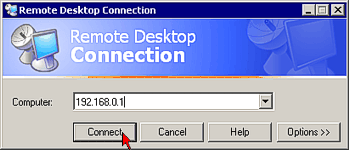 Fig.157: Entry of the IP address of the Remote-PC
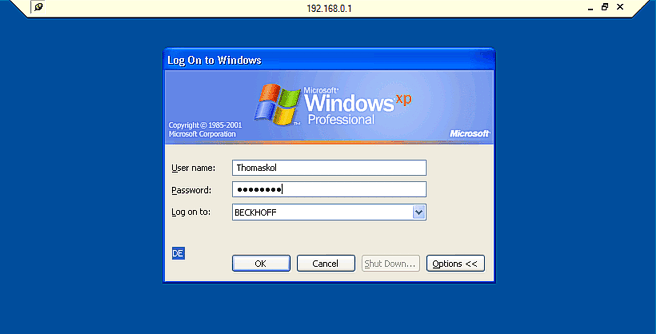 Fig.158: Login window of the remote PC via the remote desktop connection
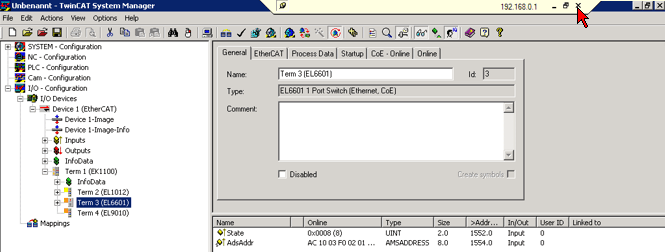 Fig.159: Closing the remote desktop connection
 | Access to the remote system When controlling the TwinCAT master PC via a remote desktop TwinCAT must be executed in Run mode or Config mode (free run). If the task is interrupted the service PC can no longer access the remote system! |