Integration in TwinCAT and Test
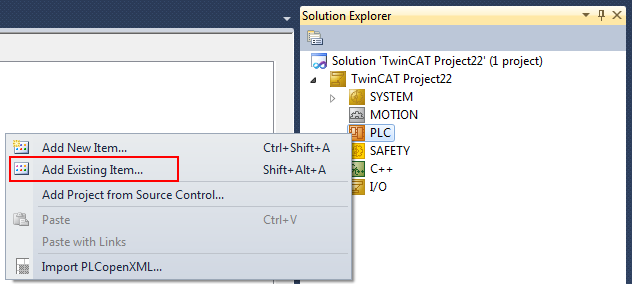
The PLC samples are provided as TwinCAT 3 PLC project files. To import a PLC project into TwinCAT XAE, first create a new TwinCAT 3 Solution. Then select the Add Existing Item command in the context menu of the PLC node and select the downloaded sample file (Plc 3.x Project archive (*.tpzip)) as the file type in the dialog that opens. After confirming the dialog, the PLC project is added to the Solution.
Two computers are required to start the sample. Alternatively, the test may be carried out with two runtime systems on a single PC. The constants with the port numbers and the IP addresses of the communication partners have to be modified accordingly.
Sample configuration with two computers:
- Device A is located on the local PC and has the IP address '10.1.128.21'
- Device B is located on the remote PC and has the IP address '172.16.6.195'.
Device A
Please perform the following steps to configure the sample on device A:
- Create a new TwinCAT 3 solution in TwinCAT XAE and import the Peer-to-Peer PLC project for device A.
- Set the constant REMOTE_HOST_IP in POU MAIN to the real IP address of the remote system (device B - in our example: '10.1.128.').
- Activate the configuration and start the PLC runtime. (Don't forget to create a license for TF6310 TCP/IP)
Device B
To install the sample on device B, proceed as follows:
- Create a new TwinCAT 3 Solution in TwinCAT XAE and import the peer-to-peer PLC project for device B.
- Adapt the constant REMOTE_HOST_IP in POU MAIN to the actual IP address of device A (in our sample '10.1.128.21').
- Enable the configuration and start the PLC runtime. (Do not forget to generate a license for TF6310 TCP/IP beforehand)
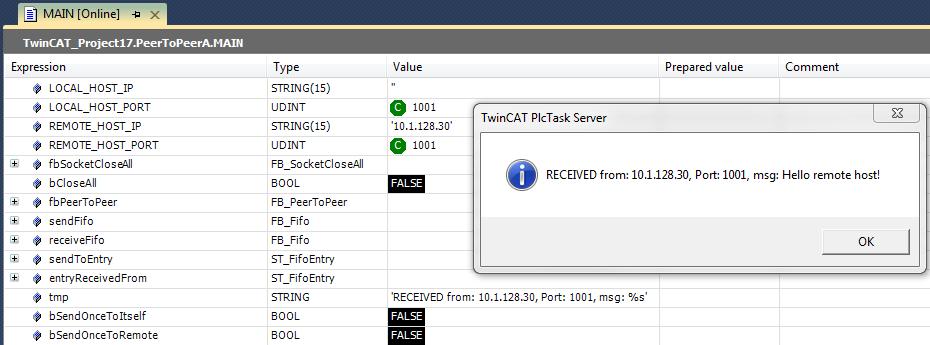
- Log in to the PLC runtime and set the Boolean variable bSendOnceToRemote to TRUE in the POU "MAIN".
- A message box should appear on device A shortly afterwards. You can now repeat this step on device A. The message box should now appear on device B.