Scope Settings
To configure the record settings open the scope settings window.
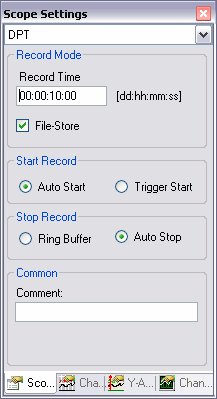
The record settings must be set before the involved Scope Servers are connected:
Record Mode
- Record Time: Set the length of the record buffer.
- File-Store: The file store option decides whether the server uses a local file to store the recorded data or operate only in the system memory. To decide best think of the amount of recorded data and system features, like flash discs with limited file operation livetime.
Start Record
- Auto Start: The record is started immediately when the record button is hit.
- Trigger Start: The record is started when the associated trigger event is raised.
StopRecord
The record mode decides how to react if the record time is reached.
- Ring Buffer: The server overrides the buffer from the beginning. As a result the begin time of the recording (see top left corner of a chart) increases. To stop the recording the command must be given by the Scope View (press stop button for example).
- Auto Stop: The record stops automatically if the record time is reached. A manually stop from the view is possible, too.
Common
- Comment: Enter a free comment here.
Scope Toolbar
The Scope toolbar contains the commands to start and stop the record and saving data. In the explanations below the associated picture are sorted from left to right:

- New-Buttons: Adds a new element to the active configuration.
- Delete: Deletes the active element.
- Start Record:The Scope View connects the involved Servers and transmits the record settings and channel properties. If previous recorded data are still available a dialog appears if the latest data should be saved. Once the record is started it is no longer possible to change scope settings or change the acquisition or number of channels.
- Stop Record: The running record session is stopped and the received data is still available. Now it's again possible to change the configuration but if you don't safe the recorded data will be discarded.
- Save Data: Once the recording is stopped, the received data can be saved to local .svd file. This file contains the recorded data and the configuration settings.
Run Menü
By choosing an option from the run menu the same actions as explained above are available. Furthermore key settings are defined in the run menu.
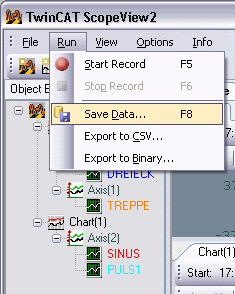
Additional two Export-Functions are placed in the Run-Menu:
Export to CSV:Text export to store recorded data in a common-usable file. The output file contains a table. The rows are separated by lines, the columns by tabulator. The first exported rows containing an overview of the scope-settings and recording, like: Name, Record start time and end time.
|
Name |
Scope01 | ||
|
File | |||
|
StartRecord |
128783093223690000 |
Donnerstag, 5. Februar 2009 |
13:08:42 |
|
EndRecord |
128783093339880000 |
Donnerstag, 5. Februar 2009 |
13:08:53 |
The next rows containing a header for each channel containing the acquisition data:
|
Name |
DREIECK |
|
NetId |
172.16.8.205.1.1 |
|
Port |
801 |
|
SampleTime[ms] |
1 |
|
SymbolBased |
TRUE |
|
SymbolName |
MAIN.DREIECK |
|
SymbolComment | |
|
IndexGroup |
16448 |
|
IndexOffset |
608 |
|
Data-Type |
ADST_REAL32 |
|
VariableSize |
4 |
At least a table with timestamp (as offset to the record start time) and the associated value follows:
|
0 |
-1,03799391 |
|
1 |
-1,03599393 |
|
2 |
-1,033994 |
|
3 |
-1,031994 |
|
4 |
-1,029994 |
|
5 |
-1,027994 |
|
6 |
-1,02599406 |
|
7 |
-1,02399409 |
|
8 |
-1,02199411 |
|
9 |
-1,01999414 |
|
10 |
-1,01799417 |
|
11 |
-1,01599419 |
|
12 |
-1,01399422 |
|
13 |
-1,01199424 |
|
... |
... |
Export to Binary: The binary export may be used for larger data amount. Its format is simillar to the .csv, but as binary and without any row or column marks.
|
Variable |
Size (Bytes) |
DataType |
|
MAIN-HEADER | ||
|
HeaderSize |
8 |
Int64 |
|
NameSize |
4 |
Int32 |
|
Name |
NameSize |
Array of Char (1Byte) |
|
StartTime |
8 |
Int64 |
|
EndTime |
8 |
Int64 |
|
ChannelCount |
4 |
Int32 |
|
Variable |
Size (Bytes) |
DataType |
|
Channel - Header #1 | ||
|
ChannelHeaderSize |
8 |
Int64 |
|
NameSize |
4 |
Int32 |
|
Name |
NameSize |
Array of Char (1Byte) |
|
NetIdSize |
4 |
Int32 |
|
NetId |
NetIdSize |
Array of Char (1Byte) |
|
Port |
4 |
Int32 |
|
Sample Time |
8 |
Int64 |
|
SymbolBased |
1 |
bool (as byte) |
|
SymoblNameSize |
4 |
Int32 |
|
Symbolname: |
SymbolNameSize |
Array of Char (1Byte) |
|
CommentSize |
4 |
Int32 |
|
Comment |
CommentSize |
Array of Char (1Byte) |
|
IndexGroup |
8 |
Int64 |
|
IndexOffset |
8 |
Int64 |
|
DataTypeSize |
4 |
Int32 |
|
DataType |
DataTypeSize |
Array of Char (1Byte) |
|
DataTypeId |
4 |
Int32 |
|
VariableSize |
4 |
Int32 |
|
Samples in File |
8 |
Int64 |
|
Data in File |
8 |
Int64 |
|
File-StartPosition |
8 |
Int64 |
|
Channel - Header #2 | ||
|
... | ||
|
Channel-Header #MainHeader.ChannelCount | ||
|
Variable |
Size (Bytes) |
DataType |
|
Data Channel #1 | ||
|
DataPoint #1 | ||
|
Timestamp |
4 |
UInt32 |
|
Value |
ChannelHeader1.VariableSize |
ChannelHeader.DataType |
|
DataPoint #2 | ||
|
... | ||
|
DataPoint ChannelHeader #1.Samples In File | ||
|
Data Channel #2 | ||
|
... | ||
|
Data Channel #MainHeader.ChannelCount | ||
Using the Commandline to convert Datafiles
Once a ScopeDatafile (.svd) is created it can be converted to a supported format using the command line. Call the ScopeView2.exe with a -c as parameter to select converting. Add the name of the source and the target file.
- Example: C:\TwinCAT\Scope 2\View>TwinCatScopeView2.exe -c "C:\Scope2\DataFile.svd" "C:\Scope2\BiaryFile.svb"
To run the export without an additional userinput, be sure the ScopeServer is running and the source file exists.
Note | |
An existing target file will be overwritten without request. |