Sample program 1

Connection of a serial bar code scanner
In this example a bar code reader is connected to the EL6001. Characters will be read by the reader until the ASCII character 0x0D (13dec, CR) is received.
Data:
- Quick task for executing the serial communication: 1 ms cycle time
- Standard PLC task: 10 ms cycle time
- Barcode scanner on channel 1
- TwinCAT 2.11 required
- “TwinCAT PLC Serial Communication” supplement is required
A detailed description for the use of the serial communication library is stored in the Beckhoff Information System.
Beckhoff Information System -> TwinCAT -> TwinCAT PLC -> TwinCAT libraries for PC-based systems -> TwinCAT PLC Library : Serial communication
Starting the example program
The application examples have been tested with a test configuration and are described accordingly.
Certain deviations when setting up actual applications are possible.
The following hardware and software were used for the test configuration:
- TwinCAT master PC with Windows XP Professional SP 3, TwinCAT version 2.11 (Build 1528) and INTEL PRO/100 VE Ethernet adapter
- Beckhoff EK1100 EtherCAT coupler, EL6001 terminals
- Serial barcode scanner with 9-pole sub-D connector
Procedure for starting the program
- After clicking the Download button, save the zip file locally on your hard disk, and unzip the *.TSM (configuration) and the *.PRO (PLC program) files into a temporary working folder
- Run the *.TSM file and the *.PRO file; the TwinCAT System Manager and TwinCAT PLC will open
- Connect the hardware in accordance with fig. 1 and connect the Ethernet adapter of your PC to the EtherCAT coupler (further information on this can be found in the corresponding coupler manuals)
- Select the local Ethernet adapter (with real-time driver, if one) under System configuration, I/O configuration, I/O devices, Device (EtherCAT); on the “Adapter” tab choose “Search...”, select the appropriate adapter and confirm (see Figures)
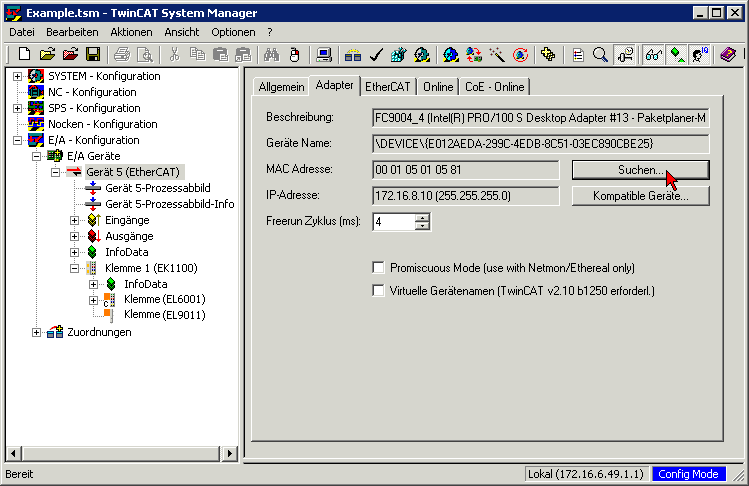 Fig.156: Searching the Ethernet adapter
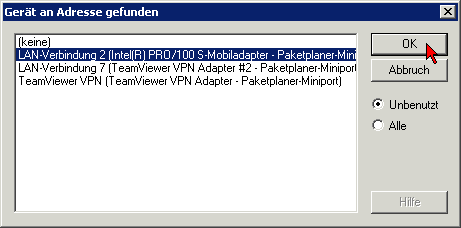 Fig.157: Selection and confirmation of the Ethernet adapter
Activation of the configuration and confirmation:
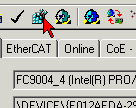 Fig.158: Activation of the configuration
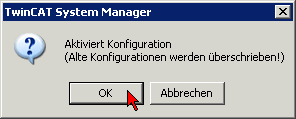 Fig.159: Confirming the activation of the configuration
- Confirming new variable mapping, restart in RUN mode:
- In TwinCAT PLC, under the “Project” menu, select “Rebuild all” to compile the project:
- In TwinCAT PLC: log in with the “F11” button, confirm loading the program, run the program with the “F5” button:
- After the character 0x13 has been received, the barcode is stored in “LastBarcode”
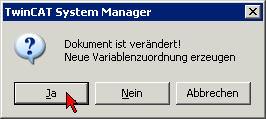 Fig.160: Generating variable mapping
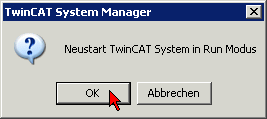 Fig.161: Restarting TwinCAT in RUN mode
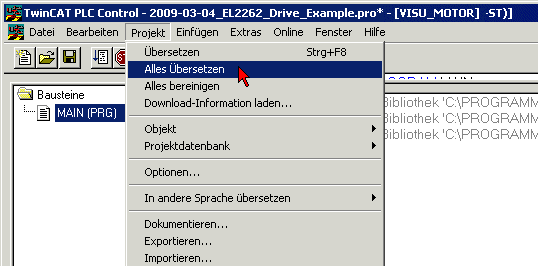 Fig.162: Compile project
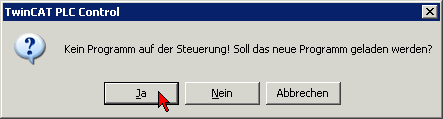 Fig.163: Confirming program start
 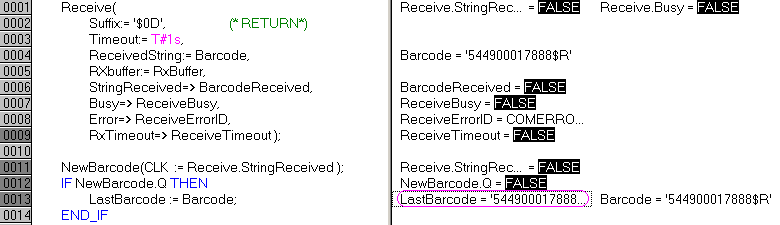 Fig.164: Received barcode