Creation of the TwinCAT configuration
(Master: TwinCAT 2.1x)
 | Installation of the latest XML device description Please ensure that you have installed the corresponding latest XML device description in TwinCAT. This can be downloaded from the Beckhoff Website and installed according to the installation instructions. |
The configuration tree in the Beckhoff TwinCAT System Manager can be created in 2 ways:
- by scanning of existing hardware (referred to as “online”), or
- by manually inserting/appending fieldbus devices, couplers and slaves.
Automatic scanning in of the terminal
- The Bus Terminal system must be in a safe, de-energized state before the terminals are inserted into the terminal network as described in section Mounting rail installation.
- Once the operating voltage has been switched on, open the TwinCAT System Manager (Config mode) and scan in the terminal (see Fig. Scanning in the EtherCAT configuration (I/O Devices -> right click -> Scan Devices…). Acknowledge all dialogs with "OK", so that the configuration is in "FreeRun" mode.
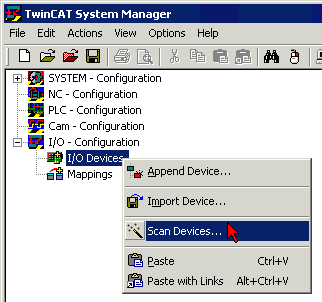 Fig.164: Scanning in the EtherCAT configuration (I/O Devices-> right-click -> Scan Devices...)
Appending a terminal manually
- The Bus Terminal system must be in a safe, de-energized state before the terminals are inserted into the terminal network as described in section Mounting rail installation.
- Switch on the operating voltage, open the TwinCAT System Manager (Config mode)
- Appending a new I/O device (see Fig. Appending a new I/O device (I/O Devices -> right click -> Append Device…)). In the dialog that follows select the device EtherCAT (Direct Mode), see Fig. Selecting the device EtherCAT (Direct Mode) and confirm with OK.
- Appending a new box (see Fig. Appending a new box (Device -> right click -> Append Box…)). In the dialog that follows select an EK1100 system coupler, for example (see Fig. Selecting a system coupler (e.g. EK1100)) and confirm with OK.
- Appending a new box (see Fig. Appending a new box (Device -> right click -> Append Box…)). In the dialog that follows, select the EL4732, see Fig. Selecting the EL4732 terminal, and confirm with OK.
- The terminal is added in the TwinCAT tree (Fig. Terminal in the TwinCAT tree).
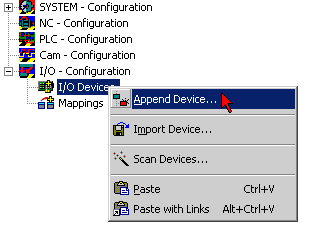 Fig.165: Appending a new I/O device (I/O Devices-> right-click -> Append Device...)
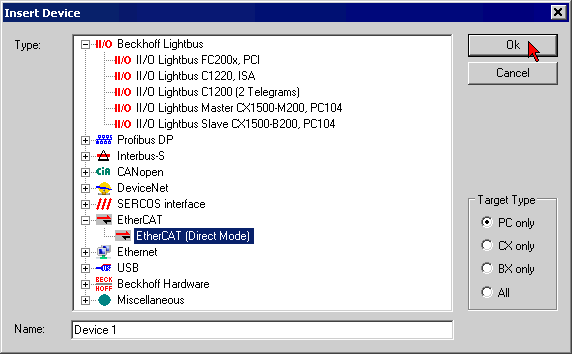 Fig.166: Selecting the device EtherCAT (Direct Mode)
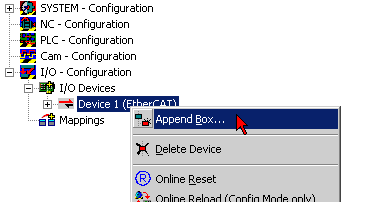 Fig.167: Appending a new box (Device -> right-click -> Append Box... )
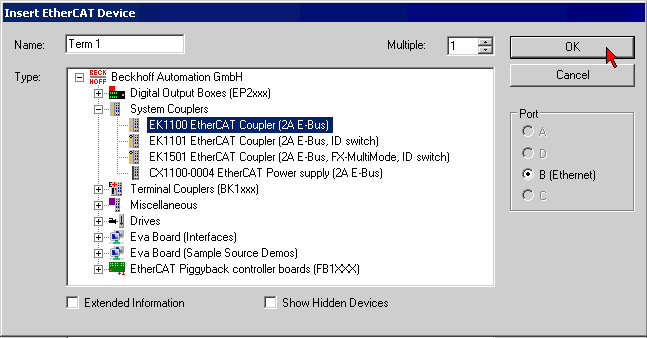 Fig.168: Selecting a system coupler (e.g. EK1100)
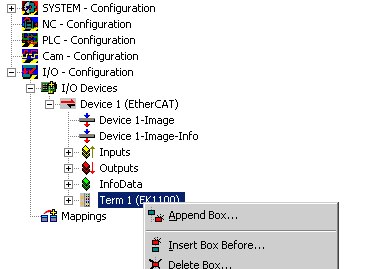 Fig.169: Appending a new box (Device -> right-click -> Append Box... )
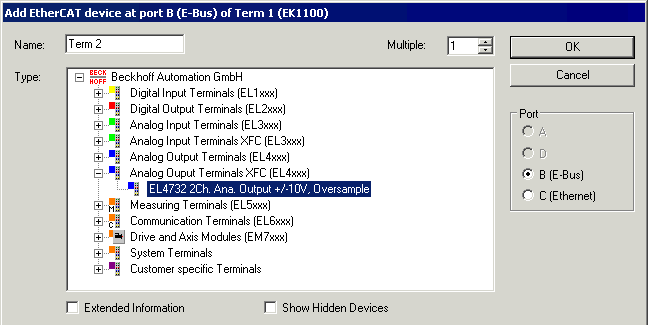 Fig.170: Selecting the EL4732 terminal
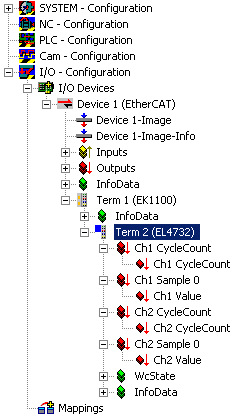 Fig.171: Terminal in the TwinCAT tree