Starting the example program
The application examples have been tested with a test configuration and are described accordingly. The program serves as an initial introduction to the options for evaluating the data from a mains monitoring terminal. The user is free to change the program to suit his ideas or to use only part of the code.
- The following hardware and software were used for the test configuration:
TwinCAT Master PC with Windows XP Professional SP 3 as operating system, TwinCAT version 2.11 (Build 2230) and Intel PCI Ethernet adapter - Beckhoff EK1100 EtherCAT coupler, EL3773 and EL9011 terminals
Procedure for starting the program
- After clicking the Download button, save the zip file locally on your hard disk, and unzip the *.TSM (configuration) and the *.PRO (PLC program) files into a temporary working folder
- Run the *.TSM file and the *.PRO file; the TwinCAT System Manager and TwinCAT PLC will open
- Connect the hardware and connect the Ethernet adapter of your PC to the EtherCAT coupler (further information on this can be found in the corresponding coupler manuals)
- Select the local Ethernet adapter (with real-time driver, if applicable) under System configuration, I/O configuration, I/O devices, Device (EtherCAT); then on the “Adapter” tab choose “Search...”, select the appropriate adapter and confirm (see Fig. Searching the Ethernet adapter + Selection and confirmation of the Ethernet adapter).
- Activate and confirm the configuration (Fig. Activation of the configuration + Confirming the activation of the configuration)
- Confirm new variable mapping, restart in RUN mode (Fig. Generate variable mapping + Restarting TwinCAT in RUN mode)
- In TwinCAT PLC, under the “Project” menu, select “Rebuild all” to compile the project (Fig. Compile project)
- In TwinCAT PLC: log in with the “F11” button, confirm loading the program (Fig. Confirming program start), run the program with the “F5” button
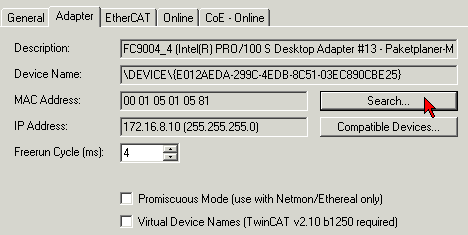 Fig.149: Searching the Ethernet adapter
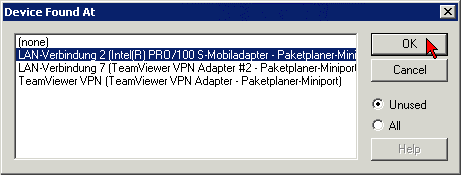 Fig.150: Selection and confirmation of the Ethernet adapter
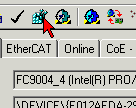 Fig.151: Activation of the configuration
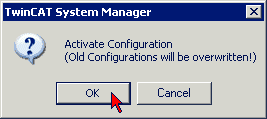 Fig.152: Confirming the activation of the configuration
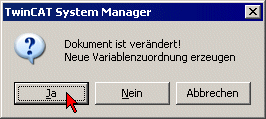 Fig.153: Generating variable mapping
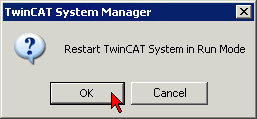 Fig.154: Restarting TwinCAT in RUN mode
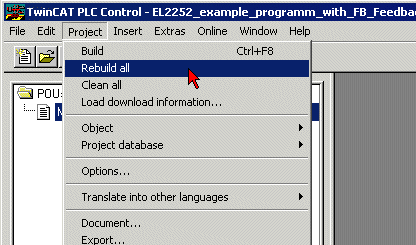 Fig.155: Compile project
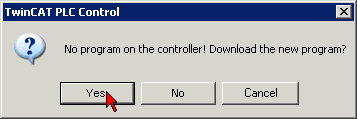 Fig.156: Confirming program start