Installation
System requirements
Initially, the same requirements apply to the target for MATLAB®/Simulink® as for TwinCAT 3 C/C++. For a detailed description of the TwinCAT 3 C/C++ requirements, please refer to Chapter 4, "Requirements", of the TwinCAT 3 C++ manual.
In the following sections, these requirements are only referred to briefly, not in detail.
On the engineering PC
- Microsoft Visual Studio 2010 (with Service Pack 1), 2012, 2013, 2015 or 2017 Professional, Premium, Ultimate or Community Edition
- Installation under Windows always with right-click run as admin…
- For Visual Studio 2015 check the Visual C++ checkbox during installation
- For Visual Studio 2017, manually select "Desktop development with C++"
- Microsoft "Windows Driver Kit" version 7.1.0 (only required for TwinCAT versions older than TwinCAT 3 build 4024.0)
- It is sufficient to install the "Build Environments".
- Set the environment variable (variable name WINDDK7, variable value <Installation directory> e.g. C:\WinDDK\7600.16385.1)
- TwinCAT 3 XAE Build 4024
On the runtime PC
- IPC or Embedded CX PC with Microsoft operating system based on "Windows NT kernel" (Win XP, Win 7 and corresponding embedded versions, Win 10)
- TwinCAT 3 XAR Build 4024
- TwinCAT 3.1 supports 32-bit and 64-bit operating systems. If the target is a x64 system, the created drivers must be signed. The TE1400 supports OS driver signing. See "x64: driver signing" in the TwinCAT 3 C++ manual
In addition to the above requirements, which originate from the requirements of TwinCAT 3 C/C++, the following requirements apply to the engineering PC:
- MATLAB®/Simulink® R2010b up to and including R2019a. As of and including R2019a, the use of TE1400 version 2.x.xxxx.x is recommended.
- Simulink® Coder™ (in MATLAB® versions prior to R2011a: Real-Time Workshop®)
- MATLAB Coder™ (in MATLAB® versions prior to R2011a: part of the Real-Time Workshop®)
- Installing the TE1400 Target for MATLAB®/Simulink®
Setup instructions
- Install one of the supported Visual Studio versions, if not already installed. Pay attention to the installation of the C++ components.
- 1. Start TwinCAT 3 Setup, if it does not already exist.
- If a Visual Studio and a TwinCAT installation already exists but the Visual Studio version does not meet the requirements mentioned above (e.g. Visual Studio Shell or Visual Studio without Visual C++), you first have to install a suitable Visual Studio version (install Visual C++, if necessary). Then run TwinCAT 3 Setup to integrate TwinCAT 3 into the new (or modified) Visual Studio version.
- 2. If necessary, install the Microsoft Windows Driver Kit (see Installation "Microsoft Windows Driver Kit (WDK)" in the TwinCAT 3 C/C++ manual).
The order in which the Windows Driver Kit was installed is irrelevant. - 3. If you do not have a MATLAB® installation on your system, install it. The order in which MATLAB® was installed is irrelevant.
- 4. Start the setup TE1400-TargetForMatlabSimulink to install the TE1400.
The TE1400 is installed in the TwinCAT folder, i.e. it is separate from the MATLAB® installation. A MATLAB® version that exists on the system can be linked to the TE1400 according to point 6. - 5. Start MATLAB® as administrator and execute %TwinCAT3Dir%..\Functions\TE1400-TargetForMatlabSimulink\SetupTwinCatTarget.p in MATLAB®.
- A setup window opens. See the following section.
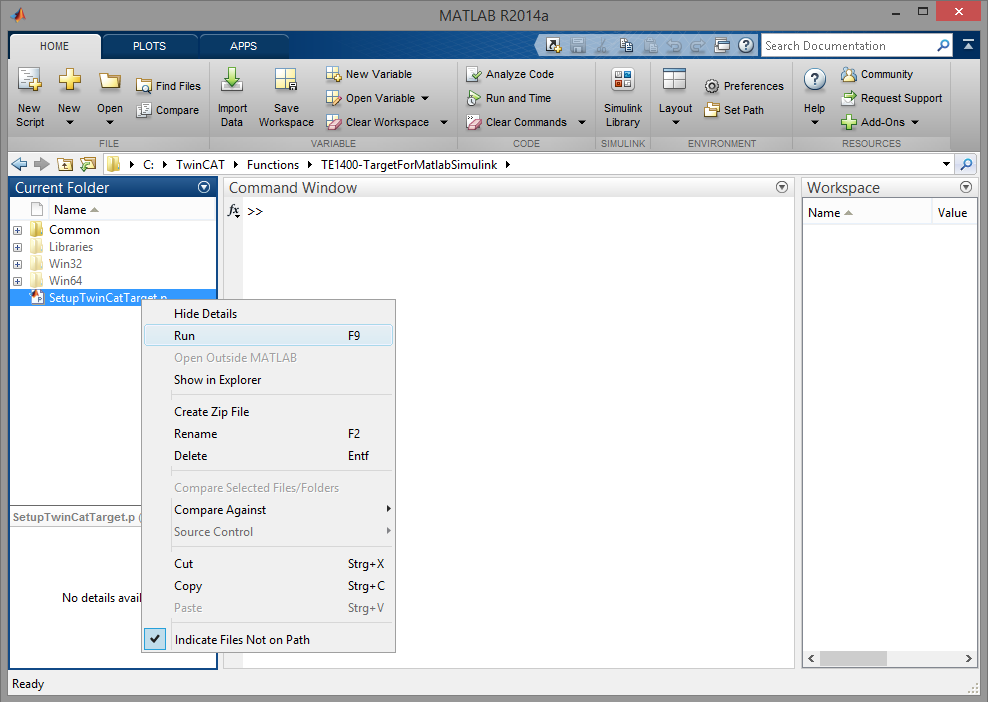
- The p-file links the MATLAB® version used to the TE1400. If a new MATLAB® version is installed on the system, the p-file must be executed in the new version.
- If a new TE1400 version is installed on top of an existing TE1400 version, the p-file should also be run again.
 | User Account Control If MATLAB® is executed in a system with activated User Account Control (UAC) without administrator rights, the MATLAB® path cannot be stored permanently. In this case, SetupTwinCatTarget.p must be executed every time MATLAB® is started, since otherwise some files required for generating TwinCAT modules cannot be found. |
| Driver signing for targets with x64 operating system To use an x64-operating system as runtime PC, the drivers must be signed. Details can be found in the TC3 C++ manual under Driver signing. |