Composite State
A composite state is used for grouping the states it covers. It can be used for two different use cases:
- Grouping/Nesting:
- If a composite state consists of precisely one region, the inner states are passed through sequentially at runtime. An inner state can thereby be a composite state again, so that a nesting of composite states is created. In addition, such composite states can call ENTRY/DO/EXIT actions.
- Composite states, each with a particular region, are used to group states, so that shared forwarding or shared error handling can be implemented, e.g. with the aid of (pseudo) exception transitions. In addition or alternatively, the composite state can be provided with its own ENTRY/DO/EXIT actions, which can be topically assigned to the inner states. This is interesting, for example, if a higher-level DO action is to be called in addition to the DO actions of the inner states. In this case the higher-level DO action could be placed in the composite state.
- If multiple composite states are nested, only the innermost composite state may have more than one region.
- Parallel sub-state machines:
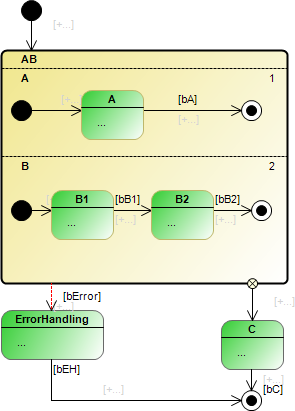
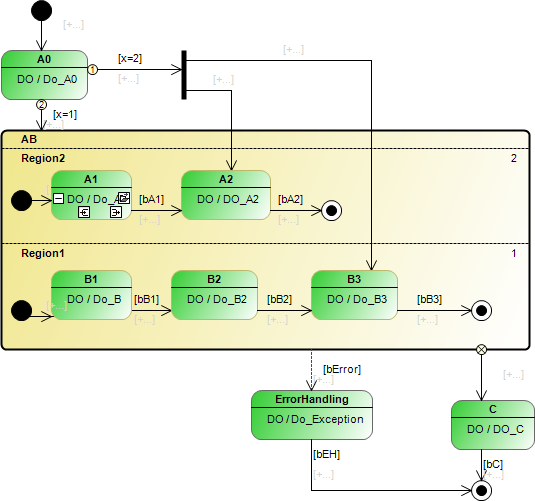
- If a composite state consists of several regions, the inner states are grouped orthogonally. The regions of the composite state are assigned priorities, which control the processing order at runtime. The states of the regions are passed through pseudo-parallel, according to their internal sequencing.
- Composite states with several regions or so-called orthogonal states are used for programming parallel states.
Samples of the implementation of various use cases can be found at the foot of this page.
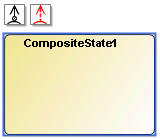
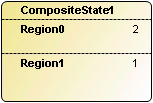
A composite state is shown as a yellow, filled rectangle with rounded corners. Its name is displayed in the upper left corner of the rectangle. Regions are separated by black dashed lines.
In the case of a composite state with several regions, the priority of each region is displayed in the top right-hand corner and the name of each region in top left-hand corner of the region. The lines, names and priorities are editable.
Syntax rules
General syntax rules for composite states
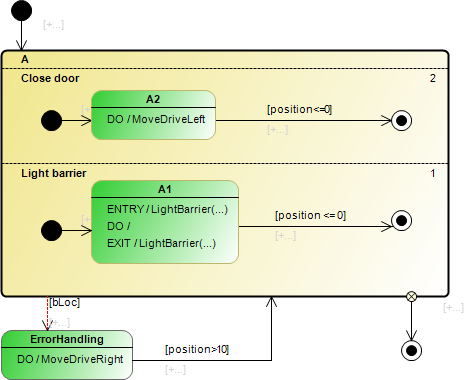
- A composite state can have one or several outgoing exception transitions. An error handling, for example, can be implemented with the aid of an exception transition.
- Completion transition
- A composite state can only have one outgoing completion transition.
- If a composite state has an outgoing completion transition, each region must contain a start and end state.
- The regions do not require an end state if the composite state has no outgoing completion transition.
- However, the composite state must have an outgoing completion transition if all regions of the composite state contain an end state.
- The composite state reaches its end state when all regions have reached their respective end states.
Syntax rules for a composite state with precisely one region
- Activate start state/composite state
- If the composite state has an outgoing completion transition, the region must have a start and end state (refer also to the general syntax rules regarding the end state) and the incoming transition must be connected to the composite state to activate it.
- If the composite state does not have an outgoing completion transition, the region can optionally contain a start state.
If a start state exists, to activate the composite state, the incoming transition must be connected to the composite state. A direct connection via a conditional transition between a state inside the composite state and a state outside the composite state is not allowed - neither from outside to inside nor from inside to outside.
On the other hand, if there is no start state, the incoming transitions are directly connected to the inner states. This could be one or more incoming transitions. Furthermore, the other direction is also possible in this case: starting from the states inside the composite state, outgoing conditional transitions can be connected directly to states outside of the composite state. This could be one or more outgoing transitions. Please note that states inside and outside of a composite state may only be directly connected to one another (regardless of the direction) if the inner and outer state are separated only by one level of a composite state. This means that a state located inside a composite state that is in turn located inside another composite state (nesting) cannot be directly connected to a state located outside this nesting of composite states. This connection would cross two borders of composite states, but it is only allowed to cross one border. The named state can only be directly connected with an outside state if this target state is located in the outer composite state (only one level crossed). - Nesting
- A composite state with precisely one region can contain another composite state. In this case the states are nested.
- The nesting of composite states may be arbitrarily deep, with only the innermost composite state having more than one region.
Syntax rules for a composite state with multiple regions
- Activate start state/composite state
- The incoming transition must be linked with the composite state to activate it.
- Each region must contain a start state.
- Transitions between states in different regions are not permitted.
- A direct connection via a conditional transition between a state inside the composite state and a state outside the composite state is not allowed - neither from outside to inside nor from inside to outside.
Exception: using a fork that is outside the composite state, you can create transitions that go to states inside the composite state.
ENTRY, DO, EXIT actions/methods
A composite state that has precisely one region can be assigned ENTRY/DO/EXIT actions/methods.
In order to enable this function, the option "Allow ENTRY/DO/EXIT actions" must be activated. This option is located in the properties of the composite state. For these actions or methods you can choose any implementation language.
- The ENTRY action can initialize the composite state. It is executed once when all incoming transitions switch or when an internal state becomes active, so that the composite state is activated.
- Note the description of the property "Execute DO actions, even if inner composite states are active", which determines the behavior of the DO action.
- The EXIT action is intended to ensure that the composite state is exited in a valid state. The EXIT action is executed once when all outgoing transitions switch or when an outer state becomes active, so that the composite state is exited.
Call behavior
Make sure you refer to the samples, which describe and illustrate the call behavior of the UML state diagram.
Properties
"Property" | Description |
|---|---|
"Identifier" | Name of the composite state Example: DoorAutomation |
"Color" | Color of the composite state Click on the set color to change the color of the composite state via the drop-down menu that opens. Default: |
"Allow ENTRY/DO/EXIT actions" | Requirement: this property is available when the selected composite state has exactly one region. In this case you can also assign actions to a composite state if it is part of a nesting of composite states.
|
"Execute DO actions, even if inner composite states are active" | Requirement: several composite states are graphically nested within each other. The option is only available for the outer composite state and is passed on to the inner composite states.
|
"ENTRY action" | Requirement: the selected composite state has precisely one region and the property "Allow ENTRY/DO/EXIT actions" is activated. Assign an action to the selected state by specifying its action name. |
"DO action" | |
"EXIT action" |

 : you can assign an ENTRY, DO or EXIT action to the selected composite state.
 : you cannot assign ENTRY, DO or EXIT actions to the selected composite state.
Edit composite state
The user inputs in the state diagram editor can be summarized as follows:
User input in the state diagram editor | Response in the state diagram | Description |
|---|---|---|
Focus on a composite state. |
| The composite state is editable.
Conditional editing options:
|
Click on the green symbol |
| A completion transition is added. If you click on an existing state, it becomes the target state of the transition. Click in an empty area to create a new state. |
Click on the green symbol |
| An exception transition is added. If you click on an existing state, it becomes the target state of the transition. Click in an empty area to create a new state. |
Focus on a composite state and hold the mouse pointer over the state. |
|
|
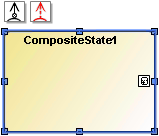
Pull one of the blue |
| The size of the composite state was adjusted. |
Click on the green symbol |
| The state is subdivided, and a further region is added. The name and priority are displayed for each region. |
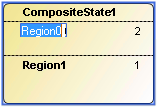
Click twice (two single clicks) on the name of a region. |
| The name of the region is editable. |
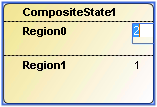
Click twice (two single clicks) on the priority of a region. |
| The priority of the region is editable. Enter a number to define the priority of the region. The priorities of the other regions are automatically adjusted. |
Click on the dividing line and move it. |
| The dividing line is moved to adjust the size of the regions. |
Click on the dividing line and press the [Del] key. |
| The dividing line is removed, so that the regions that were separated by it become one region. |
Focus on a composite state and hold the mouse pointer over the state. |
| Requirements:
|
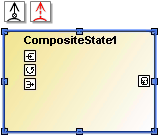
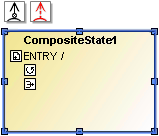
Click on one of the three symbols
|
| These command icons extend a composite state with an ENTRY, DO or EXIT action. Clicking on one of the rectangles brings up the following:
|
Focus on a state, which was extended by an action, and click on the symbol |
| For action lines the symbol appears at the end of the line, if no action has been assigned yet. The dialog "New action object" opens for generating a new action. The name of the action is shown after a slash. See also: "Add new action object" |
Click twice (two single clicks) on the ENTRY, DO or EXIT expression (irrespective of whether an action was already assigned or not). |
| The line editor opens with IntelliSense support, so that a new action can be assigned. If the required action is selected in IntelliSense, the action can be selected by double-clicking or single-clicking plus [Enter]. |
Focus on a state that was assigned an action. Click on the symbol |
| The assigned action, "SampleMethod" in the sample, opens in the editor. The action object can be edited in the POU editor that opens. |
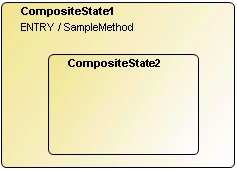
Pull a composite state from the Toolbox view to a composite state with precisely one region. |
| The composite states are nested. If the property "Allow ENTRY / DO / EXIT actions" is enabled for the outermost state, you can assign each composite state its own actions (ENTRY/ DO / EXIT). |
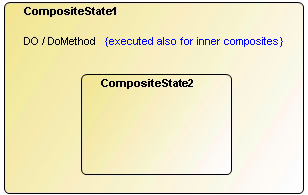
Add a DO action to the outermost composite state and activate the option "Execute DO actions, even if inner composite states are active" under Properties. |
| At runtime the DO action, e.g. "DoMethod", is executed continuously, even if one of the inner composite states is active. With deeper nesting, this option and its value are passed on to inner states. The note "{is also executed for inner composite states}" appears in the editor. |
Pull a state from the "Toolbox" window to a region of the composite state. |
| The state is assigned to this region. If the |


 squares to another position.

 : extension by ENTRY action
 : extension by DO action
 : extension by EXIT action
 .
.
 or double-click on the assigned action.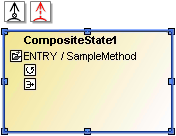
 symbol appears, the insert position to which the mouse points is not allowed.
Samples of composite states
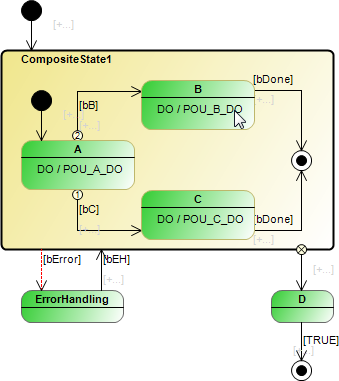
Composite state with exception and completion transition and with a region with start and end state:
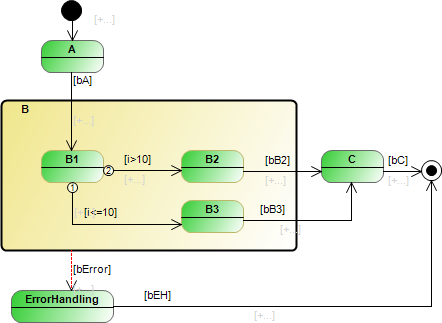
Composite state without completion transition and with a region without start and end state:
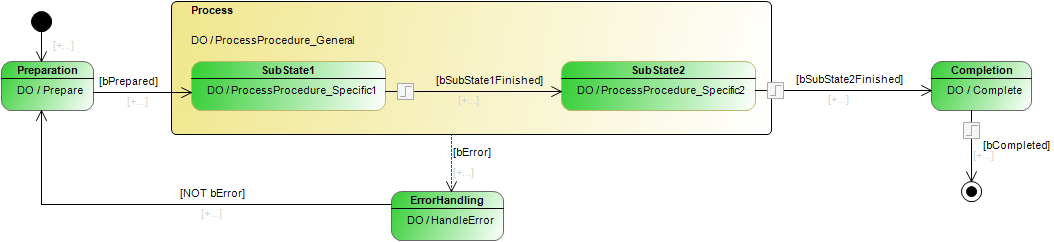
Composite state with one region and its own DO action:
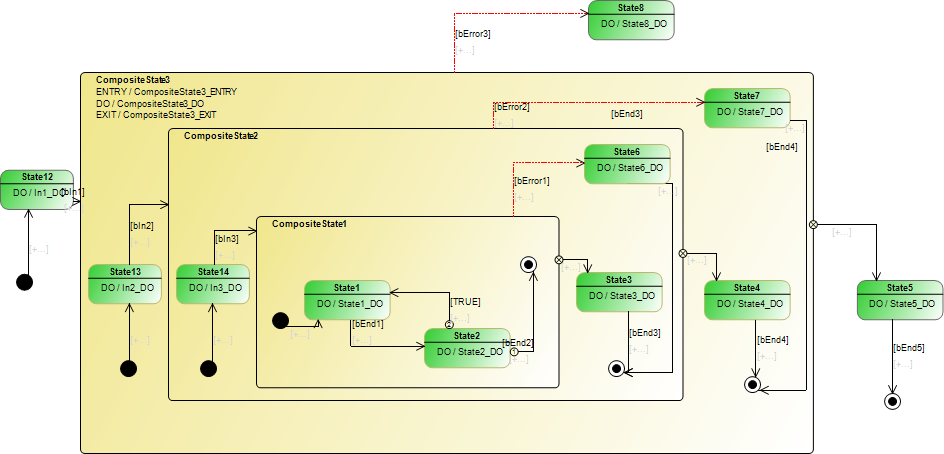
Nested composite states, some with their own ENTRY/DO/EXIT action:
Composite state with several regions/orthogonal state with fork:
Sample "Lift": orthogonal state with completion and exception transition: